Light & Play USB mode allows you to display images, videos, directly from your USB stick.
Here are simple steps to follow to set up the USB mode:
To reach the HOME menu, you need to click the OK button (step A) with the remote control on the "Aller au menu" (if it is in French) or "Go to menu" (if it's in English) on the top right corner : click on it (step B).
You can use the remote control to navigate the cursor of the mouse, or lock it and use the arrows around the OK button.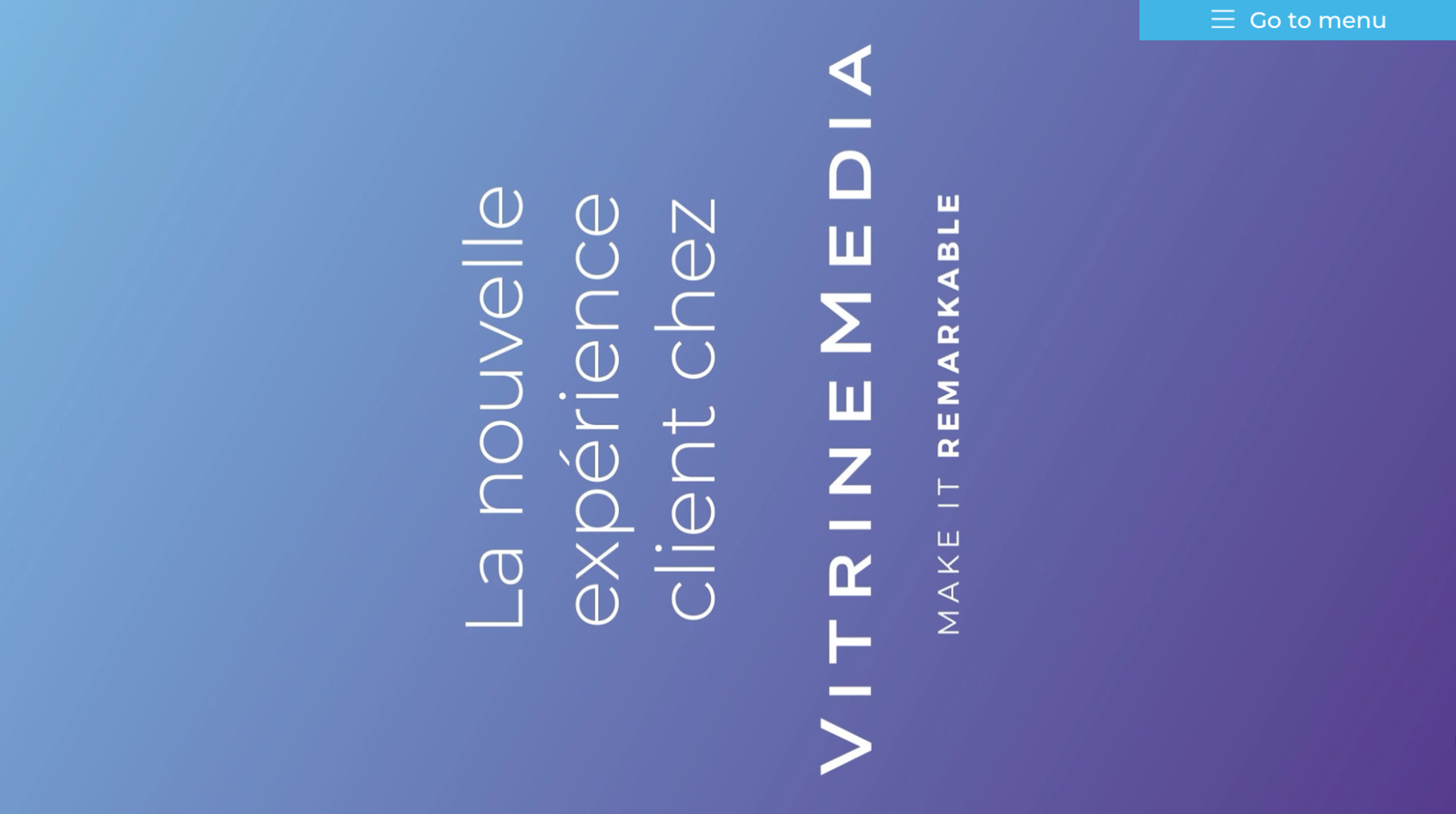
Click on the Advanced menu and choose the USB mode option.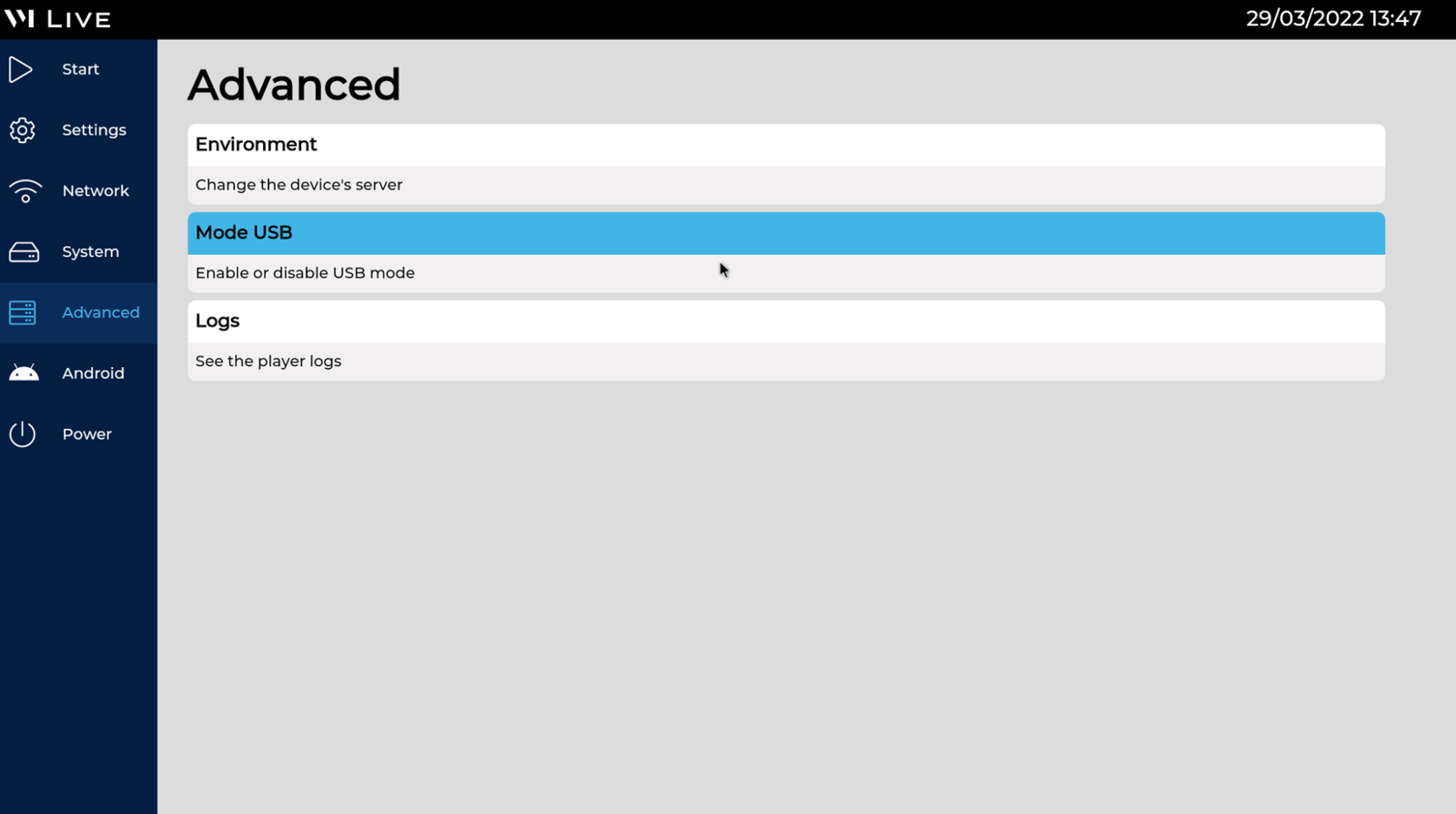
A window will open and you will need to select some information. You can turn the USB mode on by clicking on the Activate USB mode button.
You can choose how long the images will display on your screen and change the orientation of the screen. You can as well choose the switch-on time and switch-off time of your screen.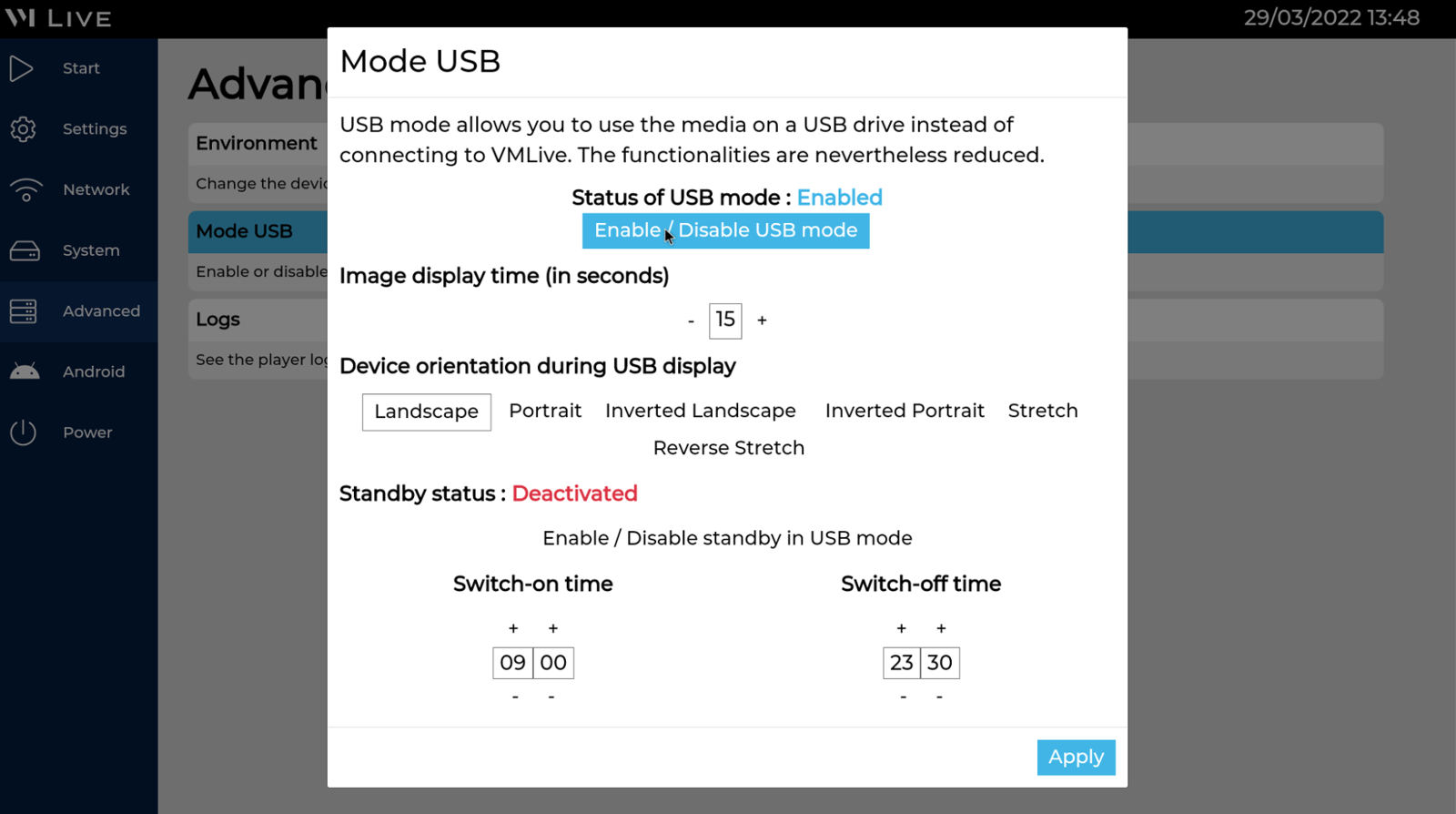
When all setting fields are filled, you can click the APPLY button.
In the main menu, choose the START menu with the remote control to start playing your medias.
You can now insert your USB stick on the Light & Play, it will automatically be played.
Use the USB mode

Alper ERDEM
- Updated